For event and conference organizers

Keep the event guide current from registration to closing session

Conference schedules change: rooms move, speakers run late, and access instructions get revised. Put a QR code on badges, lobby signs, or printed programs and direct attendees to a managed schedule or venue guide. Update the linked file as needed while the physical materials remain in use.

Stable public file page
Replace a file at its link
Aggregate views, downloads, scans
Guest: 7-day sharingOne-time file retention from $4.99Free ≤20MB · 2GB with creditsCloudflare R2 storagePNG + SVG QREmbeds + analytics
Create a share page for this workflow
Upload a supported file to create a public page, QR PNG/SVG, direct link, and engagement counts.

Free up to 20MB · larger files cost 1 credit per 10MB·e.g. a 100MB video = 9 credits

Images: jpg, jpeg, png, gif, webp, avif, svg, bmp, icoDocuments: pdf, docx, pptx, xls, xlsx, csv, txt, md, rtf, odt, ods, odpAudio: mp3, wav, ogg, aac, m4a, flac, opusVideo: mp4, mov, webm, avi, mkv, m4v, mpeg, mpgArchives: zip, rar, 7z, tar, gz
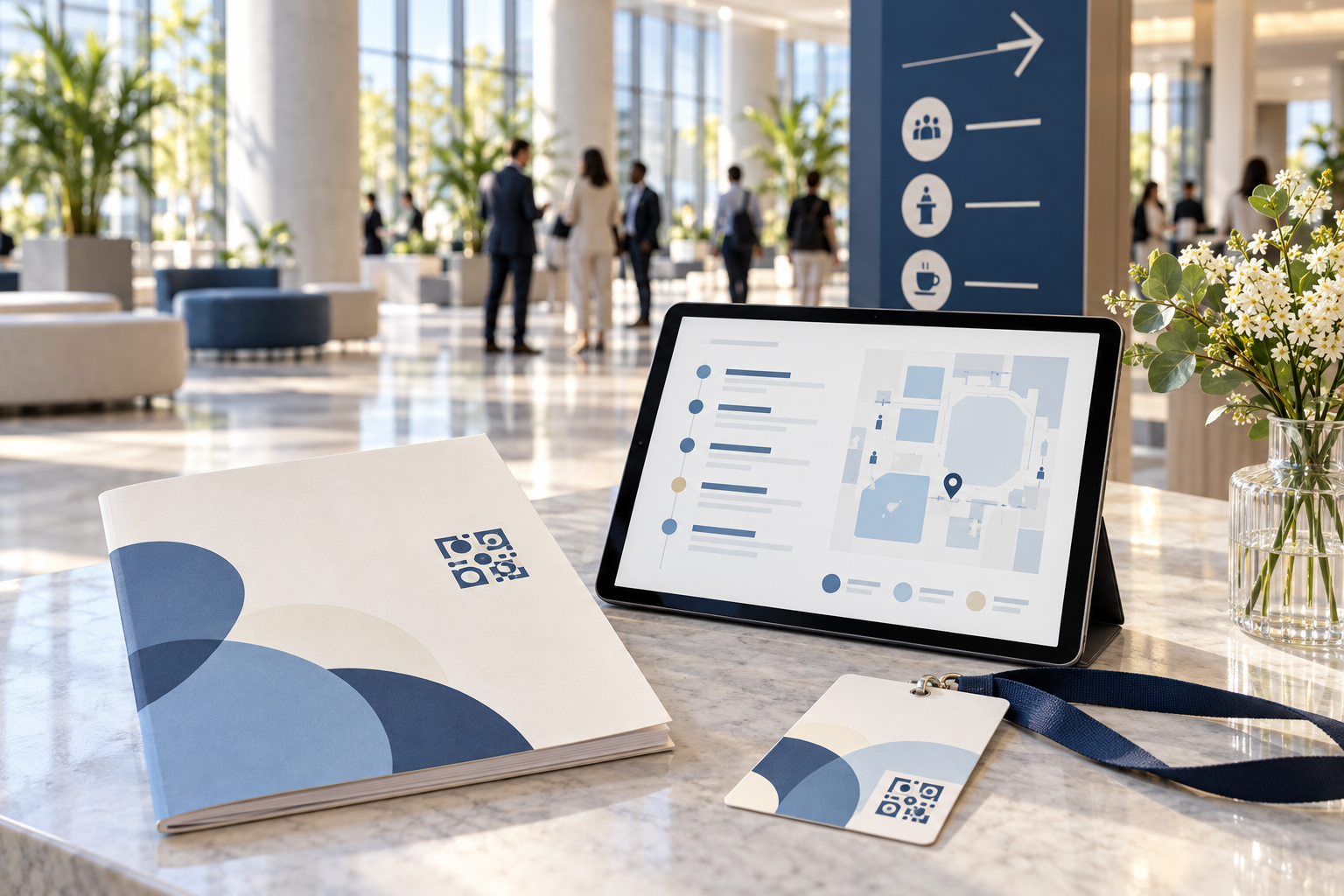
Illustrative conference schedule and QR sign use case
Conference agenda · venue map · attendee QR

Give attendees one reliable schedule destination

A print program is useful, but it cannot reflect a room change after it leaves the printer. A hosted schedule PDF can be replaced at its existing link. Include the event name, date, timezone, and revision time on the document, so attendees can distinguish the latest version from a saved copy.

Choose what belongs behind the code

An agenda, venue map, speaker handout, or session guide each serves a different need. If attendees need all of them, publish a concise index document with clearly labeled links or create separate QR codes with explicit calls to action. Avoid a code that opens an unexplained file name or a long list of unrelated assets.

Place codes where questions happen

Useful placements include registration desks, room entrances, badge inserts, and wayfinding signs. Print QR SVG artwork at a size that scans reliably and test it with both iOS and Android devices under the venue lighting. Keep a short accessible URL nearby as a fallback.

Review engagement after the event

Aggregate views, downloads, and QR scans can help an organizer understand which materials attendees used. Use separate links for distinct placements if the comparison matters. These are file-level counts, not named attendee tracking; registration and attendee identity data remain separate from this analytics workflow.

A simple workflow, with room to update

Step 1
Prepare the event resource

Publish the agenda, map, or handout with event date and revision details.

Step 2
Print and test the QR

Use the generated SVG on signage and test from the final printed size and location.

Step 3
Update and measure

Replace revised files at the same address, then review aggregate scans and views.

Frequently asked questions

Can I update an event schedule after printing the QR code?

Yes. Point the code to a managed ShareKit file page and replace the linked schedule at the same address when changes are needed.

What should an event schedule QR code open?

Usually a mobile-readable agenda or a short event guide that clearly identifies the event, date, timezone, and latest revision.

Can I use separate QR codes for maps and session handouts?

Yes. Separate files and codes make the purpose clear and allow file-level engagement counts to be reviewed independently.

Can scan data identify individual attendees?

No. ShareKit provides aggregate file-level views, downloads, and QR scan counts, not named attendee identities.

What if attendees cannot scan the code?

Print a short URL beside the code and make the resource accessible from the event website or registration email as a fallback.